Why Does a Website Show “Not Secure”? Common Causes and Fixes
Why Does a Website Show “Not Secure”? Common Causes and Fixes
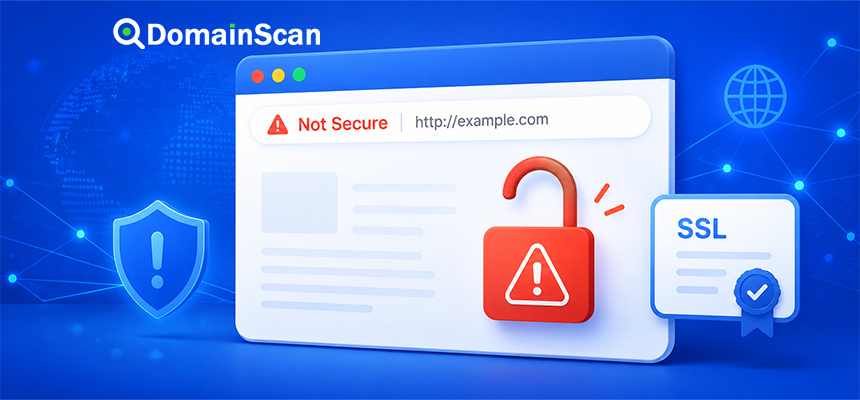
A browser may label a website as “Not Secure” when the connection does not meet the security requirements expected for modern HTTPS browsing.
Sometimes the reason is simple: the website is still using ordinary HTTP.
In other cases, the site uses HTTPS but has a certificate, hostname, mixed-content, or server configuration problem.
This distinction matters because “Not Secure” is not one single error.
A useful troubleshooting process begins by identifying what kind of connection the browser is actually making.
http://example.com
or
https://example.com
If the website is using HTTP, the connection is not protected by TLS. If the website is already using HTTPS, the next step is to inspect the certificate and the resources loaded by the page.
What Does “Not Secure” Mean?
When a browser marks a page as not secure, it is warning that the connection does not provide the level of transport security expected for that page.
The warning does not necessarily mean that the website contains malware or that someone is actively attacking the connection.
It may simply mean:
- The site uses HTTP instead of HTTPS.
- The SSL/TLS certificate is invalid.
- The certificate does not match the hostname.
- The certificate has expired.
- The certificate chain cannot be trusted.
- The page contains insecure HTTP resources.
The browser warning is therefore a connection-security signal, not a complete reputation judgment about the website itself.
HTTP vs HTTPS
The first thing to check is the protocol shown in the browser address bar.
HTTP
http://example.com
HTTP sends application traffic without the protection provided by TLS.
A network observer may be able to inspect or modify unencrypted traffic depending on the connection environment.
HTTPS
https://example.com
HTTPS uses TLS to establish an encrypted connection between the browser and the web server.
The server must also present an acceptable certificate for the hostname.
Modern public websites should normally use HTTPS.
Why Browsers Warn About HTTP
Plain HTTP does not provide confidentiality or server authentication through TLS.
This is especially important when a page handles information such as:
- Passwords
- Contact forms
- Payment information
- Personal data
- Session cookies
- Account information
Even a website that does not collect sensitive data benefits from HTTPS because visitors can verify that they are communicating with the intended hostname through a trusted TLS connection.
Cause 1: The Website Does Not Use HTTPS
The most basic case is a site that is only available through HTTP.
For example:
http://example.com
If no HTTPS service has been configured, the browser cannot establish a TLS-protected connection.
To fix this, the website normally needs:
- A valid SSL/TLS certificate
- HTTPS enabled on the server
- Port 443 open
- The certificate installed correctly
- HTTP redirected to HTTPS where appropriate
Cause 2: The SSL Certificate Has Expired
A website can use HTTPS and still show a certificate warning if its certificate is expired.
For example:
Certificate valid until:
2026-08-30

Current date:
2026-08-31
The server may still be online, but the certificate is outside its validity period.
The correct fix is to renew or reissue the certificate and confirm that the public server actually presents the new certificate.
Cause 3: The Certificate Does Not Match the Domain
A hostname mismatch occurs when the certificate does not cover the requested domain.
For example:
User visits:
shop.example.com

Certificate covers:
example.com
www.example.com
The browser cannot verify that the certificate is valid for shop.example.com.
This problem can be caused by:
- A missing SAN entry
- The wrong certificate being installed
- DNS pointing to the wrong server
- A CDN presenting its default certificate
- A misconfigured load balancer
Cause 4: The Certificate Chain Is Incomplete
A website certificate normally needs to connect through one or more intermediate certificates to a trusted root.
A typical chain is:
Website Certificate
        ↓
Intermediate Certificate
        ↓
Trusted Root Certificate
If the server fails to send a required intermediate certificate, some clients may not be able to verify the chain.
The website can therefore work on one device but fail on another.
Cause 5: The Certificate Comes From an Untrusted Authority
A browser normally trusts certificates that build a valid path to a root certificate in its trust store.
If the certificate was issued by an unknown or private certificate authority, the browser may not trust it.
This is common with:
- Self-signed certificates
- Internal corporate certificates
- Development environments
- Private PKI systems
A self-signed certificate can encrypt traffic, but public browsers do not automatically trust its identity.
Cause 6: The Certificate Is Not Yet Valid
Certificates have both a start time and an expiration time.
If the browser believes the current time is earlier than the certificate's valid start date, validation can fail.
For example:
Certificate valid from:
2026-09-01

Device date:
2026-08-31
This may indicate either a certificate configuration issue or an incorrect device clock.
Cause 7: The User's Device Clock Is Wrong
TLS certificate validation depends on time.
If one user's computer has an incorrect date or time, a valid certificate may appear expired or not yet valid.
This is particularly likely when:
- The error appears on only one device.
- Other users can access the site normally.
- The certificate itself has valid dates.
Before making server changes, confirm the client system clock.
Cause 8: Mixed Content
Mixed content occurs when an HTTPS page loads one or more resources through insecure HTTP.
For example, the page itself uses:
https://example.com
but loads an image from:
http://cdn.example.com/image.jpg
or JavaScript from:
http://example.net/script.js
The main HTML connection is secure, but part of the page is being requested through an insecure connection.
Why Mixed Content Is a Problem
HTTPS is intended to protect the complete connection between the browser and the site.
If an important resource is loaded over HTTP, an attacker with the ability to modify network traffic may potentially replace that resource.
This is particularly serious for active content such as:
- JavaScript
- Frames
- Stylesheets
Modern browsers may block insecure active content automatically.
How to Find Mixed Content
Browser developer tools are useful for identifying insecure requests.
Look for resources beginning with:
http://
on a page loaded through:
https://
Common sources include:
- Old image URLs
- Hardcoded JavaScript links
- Stylesheets
- Fonts
- Embedded videos
- Third-party widgets
How to Fix Mixed Content
The best fix is normally to load the resource securely.
Change:
http://example.com/resource.js
to:
https://example.com/resource.js
but only if the resource is actually available over HTTPS.
For local resources, relative paths can also reduce protocol-related mistakes:
/images/logo.svg
Cause 9: The Website Redirects Incorrectly
A site may have HTTPS configured but send visitors back to HTTP.
For example:
https://example.com
        ↓
301 Redirect
        ↓
http://example.com
This defeats the purpose of HTTPS.
Review:
- Web server redirects
- Application configuration
- CMS settings
- Reverse proxy rules
- CDN redirect rules
Cause 10: HTTP Does Not Redirect to HTTPS
A website may support HTTPS but leave the HTTP version accessible.
Users who enter:
http://example.com
may remain on HTTP instead of being redirected to:
https://example.com
A permanent redirect is commonly used:
HTTP
 ↓
301
 ↓
HTTPS
The exact configuration depends on the web server or platform.
Does an HTTPS Redirect Require a Valid Certificate?
Yes, if the user starts from an HTTPS URL.
For example:
https://old.example.com
        ↓
301
        ↓
https://new.example.com
The browser must complete TLS with old.example.com before receiving the redirect.
An invalid certificate on the old hostname cannot be bypassed simply by adding an HTTP redirect.
Cause 11: DNS Points to the Wrong Server
A certificate warning may actually begin with DNS.
Suppose the correct server is:
example.com → 192.0.2.10
but DNS returns:
example.com → 198.51.100.20
The second server may present a certificate for a completely different domain.
Always verify A, AAAA, and CNAME records when the certificate shown in the browser is unexpected.
Cause 12: An Old AAAA Record Points to Another Server
This is one of the easiest SSL problems to miss.
IPv4:
example.com. IN A 192.0.2.10
IPv6:
example.com. IN AAAA 2001:db8::50
The IPv4 server may be correct while the IPv6 destination still uses an old certificate.
Users on IPv6-capable networks can see an error that is invisible to IPv4-only users.
Cause 13: One Server in a Cluster Is Misconfigured
A domain can have several backend servers:
example.com → 192.0.2.10
example.com → 192.0.2.11
example.com → 192.0.2.12
If only one server has an expired, mismatched, or incomplete certificate, the problem appears intermittent.
One visit works.
The next visit fails.
Every TLS endpoint should be checked.
Cause 14: The CDN Certificate Is Not Ready
When a website is moved behind a CDN, the CDN often needs to issue its own edge certificate.
If DNS is changed before certificate provisioning is complete, visitors may receive:
- A default CDN certificate
- A hostname mismatch
- A temporary SSL error
Before changing DNS, confirm that the CDN has activated HTTPS for the custom hostname.
Cause 15: The Origin Certificate Is Invalid
A CDN can create two TLS connections:
Visitor
   ↓
CDN Edge
   ↓
Origin Server
The browser may trust the edge certificate while the CDN refuses to connect to the origin because the origin certificate is invalid.
In this situation, the visitor may see a CDN error page rather than a normal browser certificate warning.
Edge SSL vs Origin SSL
These should be checked separately.
Edge certificate
Used between:
Visitor ↔ CDN
Origin certificate
Used between:
CDN ↔ Origin Server
A valid edge certificate does not prove the origin connection is configured correctly.
Cause 16: Port 443 Is Not Configured Correctly
HTTPS normally uses TCP port 443.
If the hostname resolves correctly but the server:
- Does not listen on 443
- Blocks 443 with a firewall
- Routes 443 to the wrong service
HTTPS will fail.
This may not always produce a “Not Secure” label; the connection may simply fail entirely.
Cause 17: SNI Is Misconfigured
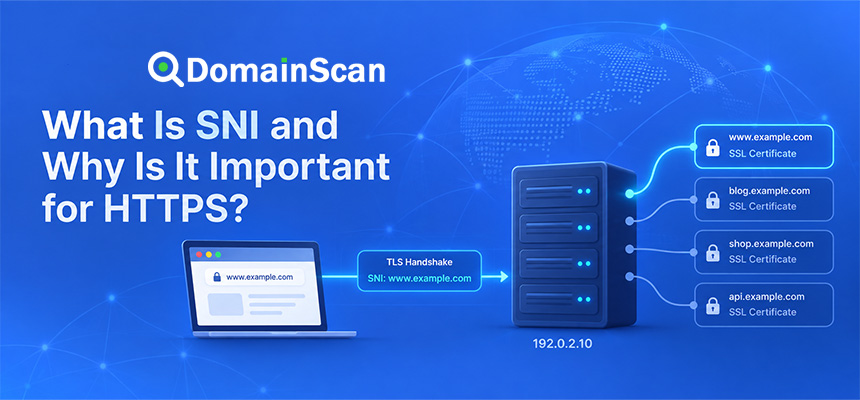
Server Name Indication allows several HTTPS sites to share one IP address.
For example:
site-a.example → 192.0.2.10
site-b.example → 192.0.2.10
The server uses the requested hostname to select the correct certificate.
If the virtual host is missing or incorrect, the server may return its default certificate.
Cause 18: The Browser Trust Store Is Outdated
Older operating systems and devices may not trust newer certificate chains or root authorities.
A website can work perfectly on current browsers while failing on:
- Old phones
- Legacy operating systems
- Embedded devices
- Old application runtimes
This does not always mean the server is misconfigured, but server chain compatibility should still be reviewed.
Cause 19: A Self-Signed Certificate Is Being Used
A self-signed certificate is not automatically trusted by public browsers.
A development server may present:
Issuer:
example.com

Subject:
example.com
The connection can technically use encryption, but the browser has no trusted CA relationship confirming the server identity.
Public websites should normally use certificates issued through an appropriate trusted certificate authority.
Cause 20: HTTPS Is Enabled Only for Some Subdomains
A certificate and server configuration may work for:
www.example.com
but not:
shop.example.com
api.example.com
portal.example.com
Each hostname must have appropriate DNS and TLS configuration.
Why the Padlock Is Not a Complete Security Test
A secure HTTPS connection does not guarantee that a website itself is trustworthy.
A malicious website can also obtain a valid certificate for a domain it controls.
HTTPS tells you that:
- The connection is encrypted.
- The certificate is valid for the hostname.
- The certificate chain is trusted according to the client.
It does not prove:
- The company is legitimate.
- The website has no malware.
- The products are genuine.
- The site has never been compromised.
How to Check Why a Website Is Not Secure
A useful diagnostic process is:
Step 1: Check the URL
Determine whether the page uses:
http://
or:
https://
Step 2: Inspect the certificate
Use the DomainScan SSL Checker to check:
- Certificate validity
- Hostname coverage
- Expiration date
- Issuer
- Certificate chain
Step 3: Check DNS
Review:
A
AAAA
CNAME
Confirm the hostname points to the intended infrastructure.
Step 4: Check all public addresses
Test every returned IP address if multiple servers exist.
Step 5: Test IPv4 and IPv6 separately
Do not assume both protocols reach the same server.
Step 6: Check for mixed content
Inspect the page for HTTP resources loaded inside HTTPS.
Step 7: Identify the TLS termination point
Determine whether HTTPS is handled by:
- The origin web server
- A reverse proxy
- A load balancer
- A CDN
How to Fix a Website That Uses HTTP
A typical migration to HTTPS involves:
- Obtain a valid certificate.
- Install it on the HTTPS endpoint.
- Enable TLS on port 443.
- Test every required hostname.
- Fix mixed content.
- Redirect HTTP to HTTPS.
- Update internal links where necessary.
- Verify external integrations.
How to Fix an Expired Certificate
Renew or reissue the certificate.
Then confirm:
- The new certificate is installed.
- The server has been reloaded if needed.
- The public endpoint presents the new certificate.
- All cluster nodes have been updated.
- CDN and load balancer certificates are current.
How to Fix a Hostname Mismatch
Compare:
Requested hostname
with:
Certificate SAN entries
If the hostname is missing, issue a certificate that covers it.
If the certificate already covers the name but the wrong certificate is being served, inspect SNI, virtual hosts, proxies, and DNS.
How to Fix an Incomplete Certificate Chain
Install the required intermediate certificates provided by the certificate authority.
The public chain should normally allow the client to build:
Website Certificate
        ↓
Intermediate CA
        ↓
Trusted Root
Test the server independently after updating the chain.
How to Fix Mixed Content
Find insecure resources and change them to HTTPS when the service supports it.
For example:
Before:
http://example.com/image.jpg

After:
https://example.com/image.jpg
For resources hosted on the same site, relative URLs may also help:
/image.jpg
Should You Force HTTPS?
For a public production website that is fully configured for HTTPS, redirecting HTTP traffic to HTTPS is generally appropriate.
Do not force HTTPS until:
- The certificate is valid.
- Every required hostname works.
- Mixed content is fixed.
- Important integrations support HTTPS.
What Is HSTS?
HSTS stands for HTTP Strict Transport Security.
It allows a website to tell browsers that the domain should be accessed only through HTTPS.
Once the browser has learned the HSTS policy, it can automatically upgrade future HTTP requests to HTTPS.
Should You Enable HSTS Immediately?
HSTS is useful but should be enabled carefully.
Before enabling a long-lived HSTS policy, confirm:
- HTTPS works reliably.
- The certificate renewal process is reliable.
- All required subdomains are understood.
- HTTP is no longer required for any critical service.
A broken HTTPS configuration becomes much more disruptive when browsers are instructed never to fall back to HTTP.
What Is HSTS Preload?
Some domains are included in browser preload lists that instruct browsers to use HTTPS before the site is ever visited.
This provides stronger HTTPS enforcement but should only be used when the domain is permanently prepared for that configuration.
Removing a domain from preload behavior is not an instant recovery mechanism.
Does HTTPS Improve Website Security?
HTTPS protects data in transit between the user and the server.
It helps prevent:
- Passive network eavesdropping
- Modification of HTTP traffic in transit
- Simple impersonation without a valid certificate
It does not replace:
- Application security
- Server patching
- Strong passwords
- Access controls
- Malware protection
- Backups
Does HTTPS Affect SEO?
HTTPS has long been part of the expected technical baseline for public websites.
More importantly, a working HTTPS configuration provides users and crawlers with reliable access to the preferred secure version of the site.
Certificate failures, redirect loops, or inaccessible HTTPS pages can interfere with normal crawling and user access.
Why Does the Browser Still Say Not Secure After Installing SSL?
Common explanations include:
- You are still visiting the HTTP URL.
- HTTP does not redirect to HTTPS.
- The page contains mixed content.
- The certificate is invalid.
- The certificate does not cover the hostname.
- The certificate chain is incomplete.
- Another server is being reached through DNS.
Start by checking the actual URL and certificate presented to the browser.
Why Does One Page Show Not Secure While the Rest of the Site Is Fine?
The affected page may load an insecure resource that other pages do not use.
For example:
Homepage:
All resources HTTPS

Contact page:
Loads old HTTP JavaScript
Inspect the affected page independently.
Why Does the Warning Appear Only on One Subdomain?
Each subdomain can have separate DNS and TLS configuration.
For example:
www.example.com → valid HTTPS
api.example.com → expired certificate
shop.example.com → HTTP only
Do not assume a certificate installed for one hostname automatically secures every subdomain.
Can DNS Propagation Cause Temporary SSL Warnings?
Yes.
During a server migration, some resolvers may still return the old IP while others return the new one.
If the old and new servers have different TLS configurations, users can temporarily see different certificates.
Both servers should be prepared with valid certificates during the transition.
A Practical “Not Secure” Troubleshooting Checklist
- Check whether the URL uses HTTP or HTTPS.
- Inspect the public SSL certificate.
- Check the expiration date.
- Check the certificate SAN names.
- Inspect the certificate chain.
- Check A records.
- Check AAAA records.
- Check CNAME records.
- Test every public IP address.
- Check IPv4 and IPv6 separately.
- Check for mixed content.
- Review HTTP-to-HTTPS redirects.
- Check CDN and load balancer certificates.
- Check SNI configuration.
- Verify the public site again.
How DomainScan Can Help
Several DomainScan tools can be useful when investigating a browser security warning.
SSL Checker
Use it to inspect:
- Certificate validity
- Expiration dates
- Issuer
- Hostname coverage
- Certificate chain
DNS Lookup
Use it to check whether A, AAAA, or CNAME records point to the intended server.
DNS Propagation Check
Use it when a recent server or DNS change produces different results across networks.
Open Ports Lookup
Use it to help determine whether services such as HTTPS are reachable on the expected network endpoint.
Frequently Asked Questions
Why does my website say Not Secure?
The website may be using HTTP or may have an SSL/TLS problem such as an expired certificate, hostname mismatch, incomplete chain, or mixed content.
Does Not Secure mean the website is hacked?
No. It indicates a connection-security problem or lack of HTTPS, not necessarily a compromised website.
How do I make my website secure?
Enable HTTPS using a valid trusted certificate, configure the server correctly, fix mixed content, and redirect HTTP traffic to HTTPS when the site is ready.
Why does my site still say Not Secure after installing SSL?
You may still be visiting HTTP, the certificate may be invalid, or the page may contain insecure HTTP resources.
Can mixed content make an HTTPS website show a warning?
Yes. Loading insecure resources inside an HTTPS page can weaken the security state and cause browser warnings or blocked resources.
Can an expired SSL certificate make a site Not Secure?
Yes. An expired certificate fails normal certificate validation.
Can DNS cause a Not Secure warning?
Indirectly, yes. DNS can send users to the wrong server, which may present an invalid or unrelated certificate.
Does a valid SSL certificate mean the website is trustworthy?
No. A certificate helps secure and authenticate the connection to the hostname. It does not verify the honesty or safety of all website content.
Why does the warning appear only on mobile?
Mobile networks may use IPv6, different DNS resolvers, or different network paths that reach another server configuration.
Can I ignore a certificate warning?
For a public website, certificate warnings should be investigated rather than treated as normal. Administrators should identify and correct the underlying configuration problem.
Final Thoughts
A browser's “Not Secure” warning is best treated as the starting point of a technical investigation rather than as one specific error.
If the site uses HTTP, the main task is to deploy HTTPS correctly. If it already uses HTTPS, inspect the actual certificate, hostname, chain, DNS destination, and page resources.
Many SSL problems originate outside the certificate itself. An outdated AAAA record, incorrect CDN configuration, stale DNS result, wrong SNI virtual host, or HTTP resource embedded in the page can all produce an insecure experience even when a valid certificate exists somewhere in the infrastructure.
The most reliable troubleshooting approach is to follow the complete connection path from the hostname to DNS, then to the TLS endpoint, certificate, and finally the page resources loaded by the browser.
Use DomainScan SSL Checker to inspect the certificate presented by a hostname, DNS Lookup and DNS Propagation Check to verify the destination, and Open Ports Lookup when you need to confirm that the expected network services are reachable.